Building Unbreakable Product Tours: How to Make Your Onboarding Survive Every Deployment and Rollout


You spent two weeks crafting the perfect user onboarding tour. Every tooltip is pixel-perfect. The copy is clear and warm. The flow mirror shows real users navigating your app. You publish it, it performs beautifully – and then your development team ships a UI update on a Tuesday afternoon.
By Wednesday morning, your tour is broken. Cards point at elements that no longer exist. Users land on steps with nothing highlighted. Your activation metric quietly starts sliding.
This is a familiar story for anyone who has managed user onboarding at scale, and it's not your developers' fault - they're just doing their jobs. The real issue is that most tours are built on a fragile foundation: CSS selectors that are only as stable as the last deployment.
This article covers the four core strategies that make tours genuinely resilient - the kind that survive UI refactors, scale across thousands of unique customers, and keep your analytics clean enough to trust.
Watch our Solution Engineer Adam Trnka showing how to build unbreakable tours in our recent webinar recording, or read the details below.
What Is Product Fruits?
Product Fruits is a no-code user onboarding platform that lets SaaS teams build interactive product tours, hints, checklists, surveys, and in-app announcements - without writing a single line of code. It integrates into any web application via a JavaScript snippet and enables customer success, product, and growth teams to guide users through features, drive activation, and reduce churn. Product Fruits also includes Elvin, an AI-powered copilot that can answer user questions, generate onboarding content, and automatically translate tours and other onboarding/adoption content into dozens of languages.
Challenge 1: Multi-Tenant Environments
Before we talk about how tours break, it helps to understand the two distinct environments where breakage is structural rather than accidental.
Domain-based multi-tenancy is the simpler case. Your customers each get their own subdomain - customer1.yourapp.com, customer2.yourapp.com - but the underlying application is the same. Product Fruits handles this out of the box. Once you install the JavaScript snippet, it runs across all subdomains automatically. No extra configuration needed.
URL-based multi-tenancy is where things get interesting. Here, each customer has a unique ID baked directly into the URL path: yourapp.com/user1255/dashboard, yourapp.com/user4892/dashboard, and soon. When you build a tour, it records the specific URL on which you created it on. Left untouched, that tour will only fire on that one URL - which is not particularly useful when you have five thousand customers (but can be useful if you have just a handful and want to build something truly individual for them).
The fix is Dynamic URLs, which function as wildcards in yourURL templates. Instead of locking a tour to /user1255/dashboard, you replace the dynamic segment with a wildcard pattern, and the tour fires correctly for every customer ID. Build it once. It works for all of them - today and for the next five thousand users you onboard.
Challenge 2: Dynamic CSS - The Silent Product Tour Killer
This is the big one. If you have ever published a tour that worked perfectly during testing and then mysteriously stopped showing up after a deployment, dynamic CSS is almost certainly the culprit.
Here's what happens: modern JavaScript frameworks (React with Emotion, Angular with scoped styles, and many others) automatically generate CSS class names at build time. The button you targeted might have had a class like css-4mrg2x7c when you built your tour. After the next deployment, that same button might have the class css-9xz3k1m. From Product Fruits'perspective, the element has vanished.
What makes this especially frustrating is that the button is still there. It looks identical to users. It works the same way. The only thing that changed is an invisible string of characters in the HTML that your users will never see, but that your tours depend on entirely.
The good news is that this problem is framework-specific. Not every application is affected. But if your frontend uses CSS-in-JS or Angular's ViewEncapsulation, you need a plan.
Solution A: Text Targeting
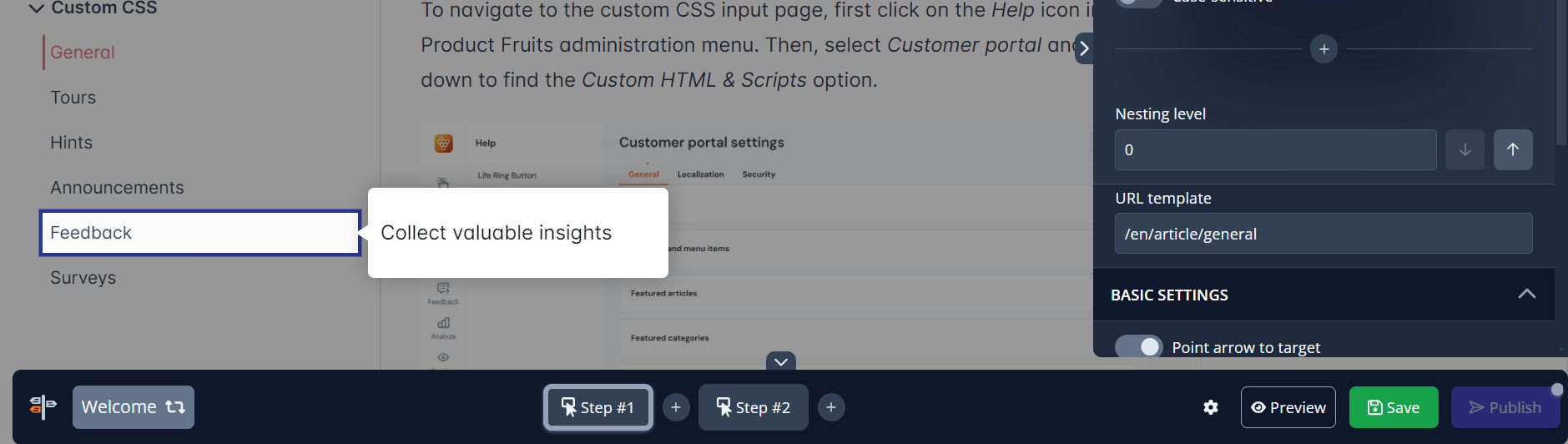
Product Fruits' text targeting feature lets you anchor tours to visible text rather than CSS class names. Instead of telling the system"attach to the element with class css-4mrg2x7c," you tell it"attach to the element that contains the text Save."
Text targeting includes several useful refinements:
- Contains matching for partial text (useful when button labels vary slightly)
- Case-sensitive toggle for precision
- Multiple text inputs working as OR conditions - valuable for multilingual applications where the same button might read "Save" in English and "Speichern" in German
- Nesting level adjustment, which lets you walk up the DOM tree to target a broader parent element (for example, highlighting an entire card rather than a single word inside it)
This approach makes your tours immune to CSS changes, because visible text is typically much more stable than generated class names. The only scenario where text targeting fails is if your developers rename the button itself - which is a semantic change, not a style change, and arguably worth knowing about (meaning they should tell you in advance).
Solution B: Data Attributes - The Gold Standard
Text targeting is robust, but data attributes are bulletproof. They represent something deeper than a technical fix: a formal agreement between your customer experience team and your engineering team.
The concept is simple. Instead of relying on auto-generated class names, you ask your developers to add a stable, human-readable attribute to key elements - something like data-component="MainSaveButton" or data-testid="save-button".This attribute is explicitly not supposed to change. It can be there regardless of what the button looks like, what it's called in the UI, or what CSS framework version you're running.
This is how it would look like in HTML:
<!-- Before: fragile -->
<button class="css-4mrg2x7c">Save</button>
<!-- After: unbreakable -->
<button data-component="MainSaveButton" class="css-4mrg2x7c">Save</button>
In the Product Fruits tour editor, you can configure the"Snap only to elements with these attributes" setting to tell the selector engine to prefer your custom data attribute over CSS classes. From that point on, your tour will lock onto the element via the data attribute -and it will continue to work even if the button is restyled, renamed in the interface, or moved to a different position on the page.
There is a useful side benefit here worth mentioning to your developers: these same data-attributes are standard practice for testing frameworks like Cypress and Selenium. Adding them for Product Fruits also improves your automated test coverage. It's a two-for-one.
The data attribute approach transforms onboarding from a maintenance burden into true "set and forget" infrastructure. You set it up once with your engineering team, and the selectors essentially never break again.
Using Analytics to Diagnose What's Already Broken
If you have tours in production that predate these best practices, the analytics funnel is your diagnostic tool.

A healthy tour funnel shows a natural, gradual drop-off. Some users skip, some disengage - that's expected. What you're looking for is acliff: a step where engagement drops to near zero and never recovers. That pattern almost always means a broken selector, not a content problem.
In Product Fruits tour analytics, you can see a step-by-step card funnel showing views, drop-offs, average time per step, and reported issues. When two or more consecutive steps show zero views, open the tour in the editor and inspect those cards. Nine times out of ten, you'll find that the highlighted element has become detached - the CSS has shifted, and the card is pointing at nothing.
The analytics section also surfaces issues directly in the funnel view, counting errors like "wrong URL" or "elementselector not found" per card. This makes it straightforward to prioritize which tours need attention most urgently.
A practical maintenance rhythm: if your team ships on a two-week sprint cycle, do a quick analytics review after each release. You're looking for sudden drops in engagement that correlate with deployment dates. Once you have data attributes in place on your key elements, these reviews become less about fixing breakage and more about spotting genuine UX friction.
The Debugger: Real-Time Diagnosis Without the Guesswork
Analytics tell you what broke. The Product Fruits debugger tells you why, in real time, on your live application.
The debugger is a live control panel that shows the operational status of all your Product Fruits content as it runs. It's available via the Product Fruits Chrome extension or can be launched directly from the browser console with:
Javascript
window.productFruits.services.attachDebugger()
Where the analytics funnel shows you historical patterns, the debugger lets you walk through a tour step by step and see exactly what the system is doing at each point. If a card can't find its target element, the debugger shows "target element not found - waiting." If a card is configured to display on /dashboard but you're currently on /dashboard/settings, the debugger shows the URL mismatch directly.
This matters because it shifts tour troubleshooting from a slow, frustrating process of elimination into something that non-technical team members can actually do. You don't need to understand CSS selectors or read browser dev tools. You launch the debugger, run the tour, and the problem is labelled for you. Fix the selector or the URL template in the editor, and you're done.
A broken tour that goes undetected is worse than no tour at all. It erodes user trust and creates blind spots in your adoption data - users appear to be engaging with step one but never completing the flow, and you don't know if that's a content issue, a targeting issue, or a navigation problem. The debugger removes that ambiguity.
Putting It Together: A Resilience Checklist
Building unbreakable tours isn't a single action - it's a set of overlapping practices that compound over time:
- Use Dynamic URLs for any application where customer IDs or tenant identifiers appear in URL paths.
- Switch to text targeting as an immediate fix for tours that break after CSS updates - it's configurable entirely within the editor, no developer required.
- Work with your developers to add data- attributes to your most important onboarding touchpoints: navigation items, primary CTAs, modal triggers, and key feature areas. Configure the Product Fruits editor to prefer these attributes.
- Review your analytics funnel after every major deployment. Look for cliff-shaped drop-offs that weren't there before.
- Use the debugger whenever a tour isn't behaving as expected - before escalating to a developer.
Each of these practices builds on the others. Text targeting handles most CSS issues immediately. Data attributes eliminate them permanently. Analytics surface what breaks in production. The debugger explains exactly how it broke.
The goal is to shift onboarding from something that needs constant maintenance to something that runs reliably in the background - durable infrastructure, not a recurring to-do list item.
Frequently Asked Questions
What is a dynamic URL in Product Fruits?
A dynamic URL uses a wildcard placeholder in the URL template for a tour card. This allows a single tour to fire correctly across many different URL patterns - for example, across every customer-specific subdirectory in a multi-tenant application - without creating separate tours for each one.
Why do my tours break after a frontend deployment?
Most tour breakage after deployments is caused by dynamic CSS class names. Modern JavaScript frameworks like React (with Emotion) or Angular generate CSS class names automatically at build time. When the framework regenerates these names in a new build, Product Fruits can no longer find the element it was targeting. The fix is to use text targeting or data attributes instead.
What is text targeting, and when should I use it?
Texttargeting lets a tour card attach to an element based on its visible text content rather than its CSS class. It's useful when CSS selectors are unstable due to dynamic class generation. It requires no developer involvement and can be configured directly in the Product Fruits editor. It's the fastest path to stability for existing tours.
What are data attributes, and why are they better than CSS selectors?
Data attributes (e.g., data-component="SaveButton")are custom HTML attributes added by developers to specific elements. Unlike CSS class names, they don't change between deployments. They create a stable contract between the engineering team and the onboarding team - the attribute will always identify that element, regardless of how the styling or layout changes.
Does Product Fruits support applications where each customer has their own subdomain?
Yes. Domain-based multi-tenancy (e.g., customer1.yourapp.com, customer2.yourapp.com) is supported out of the box. Once the Product Fruits JavaScript snippet is installed, it runs across all subdomains automatically.
Can I target elements that don't have any visible text, like icon buttons?
Yes. If an element has no visible text, it still has a CSS selector, which Product Fruits can target. For maximum stability, the best approach is to add a data- attribute to that element. This gives the selectors something stable to attach to regardless of CSS changes.
How often should I check my tours for breakage?
At a minimum, review tour analytics after each significant deployment. If your team ships on a two- or three-week sprint cycle, a post-release check takes a few minutes and catches most issues immediately. Once you have data attributes implemented on key elements, this maintenance burden drops significantly.
What is the Product Fruits debugger?
The debugger is a live diagnostic tool that shows the real-time status of your Product Fruits content as it runs in your application. It identifies specific issues per tour step - such as a missing target element or a URL mismatch - without requiring access to browser developer tools. It can be launched from the Product Fruits Chrome extension or via the browser console.


Weekly newsletter
Get the latest releases, tips, articles, and exclusive interviews delivered to your inbox weekly—no spam!